Lab 7: Google Colab: Complete Setup & Usage Guide
Lab 7: Google Colab: Complete Setup & Usage Guide
13:07
What is Google Colab?
Google Colab (short for Colaboratory) is a free, cloud-based platform that allows you to write and execute Python code in an interactive environment, specifically designed for machine learning (ML) and data science tasks.
It provides access to powerful resources like GPUs, making it ideal for training machine learning models without needing powerful local hardware.

Advantages of Google Colab
Free Access to GPUs and TPUs : You can utilize GPU and TPU resources to accelerate machine learning tasks.
No Setup Required : Colab runs entirely in the cloud, so there's no need to set up or install software on your local machine.
Collaborative Environment : You can share and collaborate on Jupyter notebooks with others in real-time.
Integration with Google Drive : Easily save your work to Google Drive and access files from any device.
How to Use Google Colab:
Sign In to Your Google Account
You’ll need a Google account to use Google Colab. Sign in or create a new account if necessary.Access Google Colab :
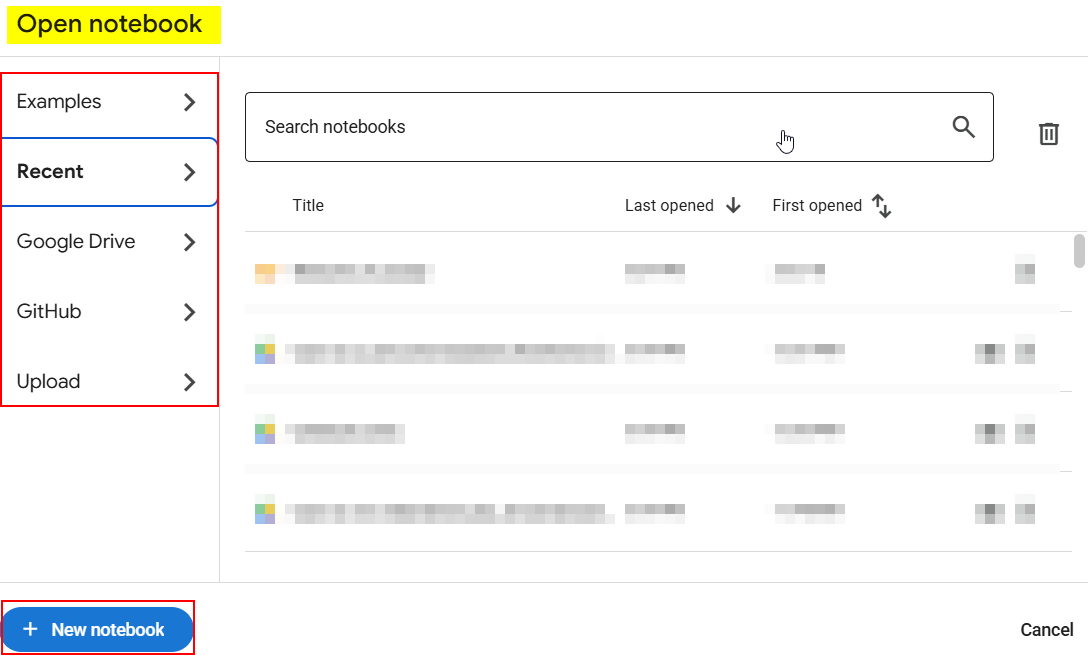
Go to Google Colab or simply search for "Google Colab" on your browser.Once on the Colab page, you’ll see options to open a notebook. The "Open notebook" dialog box appears with the following options:
Recent : View notebooks you have recently worked on.
Google Drive : Open notebooks from your Google Drive.
GitHub : Open notebooks stored on GitHub.
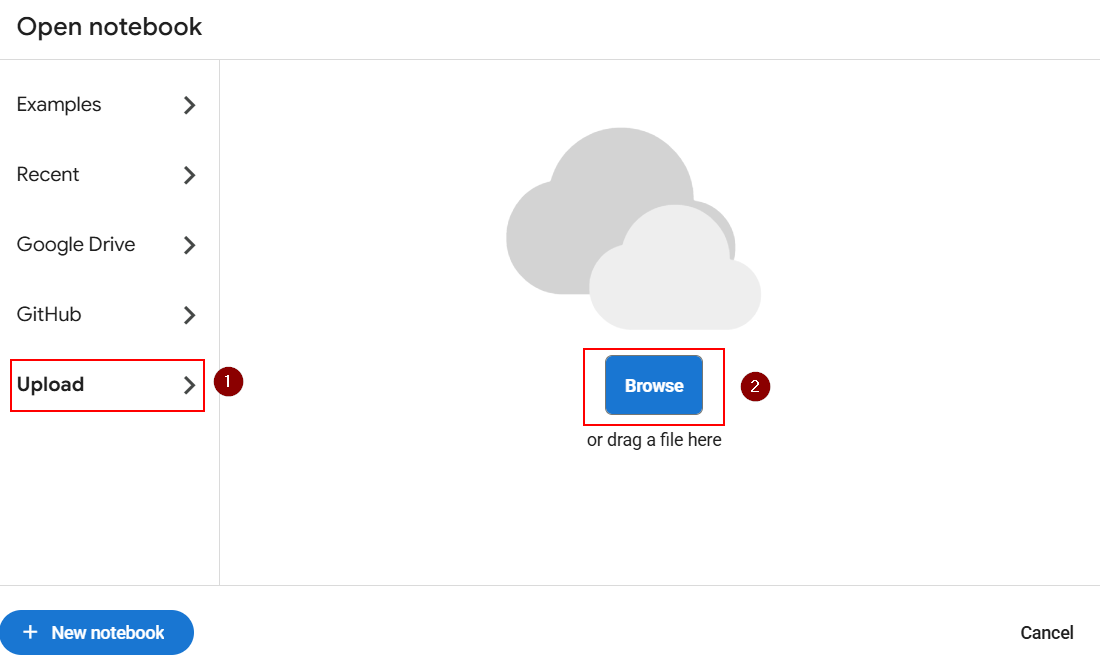
Upload : Upload a notebook from your local storage.
Examples : Access sample notebooks provided by Google.
- Click on 'Upload' to add files from your local storage to the notebook.
Note: In our training, we follow a manual upload process. We provide a pre-written Python notebook file, so you don't need to write the code manually. This helps avoid any potential errors.
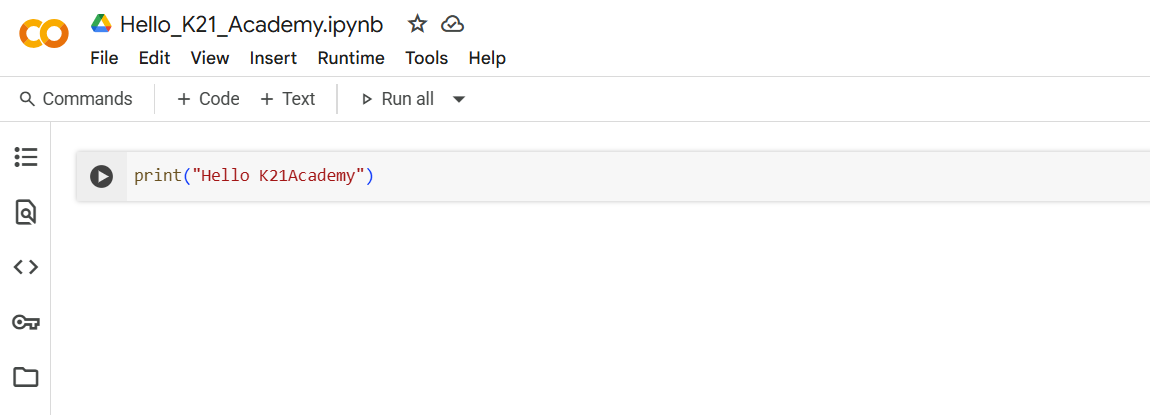
- After a successful upload, a copy of this notebook will be saved in your Google Drive under My Drive > Colab Notebooks.
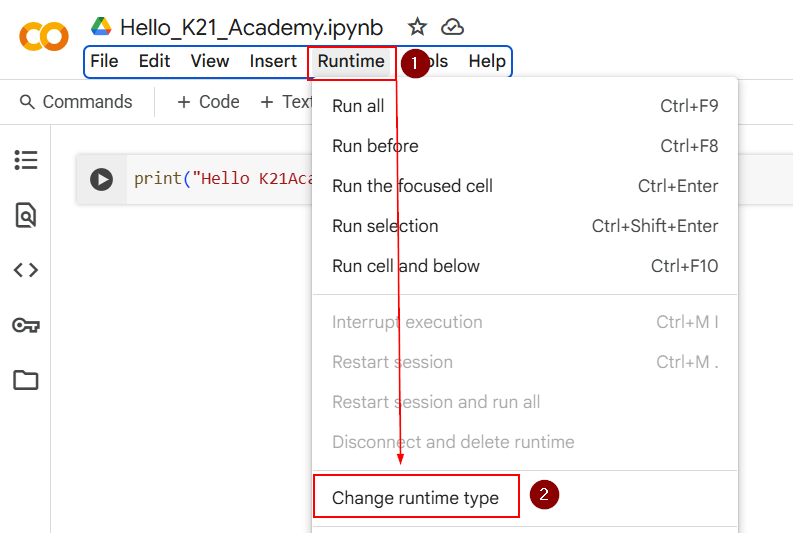
To run this notebook, you first need to set up the runtime and compute engine.
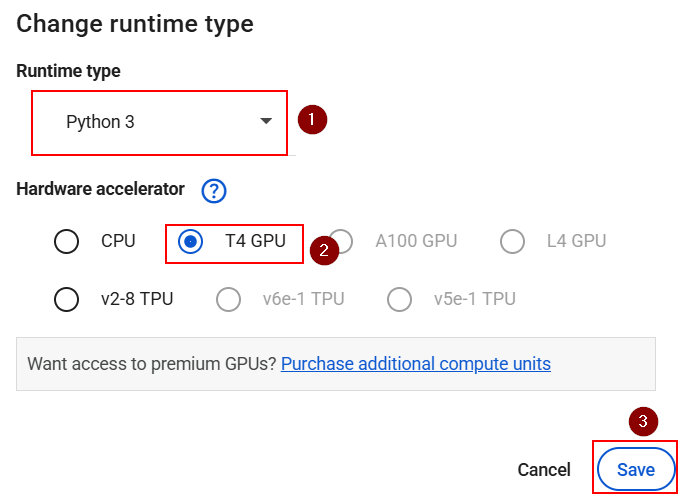
In the menu bar, click on "Runtime" and select "Change runtime type" from the dropdown to open a settings window where you can choose your desired environment for running the notebook.
- Select the desired Python version (Python 3) under "Runtime type," choose the hardware accelerator (e.g., T4 GPU) under "Hardware accelerator," and then click Save.
Note: The NVIDIA Tesla T4 GPU is a powerful and energy-efficient graphics card designed for AI, machine learning, and data processing. It speeds up model training, inference, and large-scale data tasks.
- Click the "Connect" button in the top-right corner to establish a connection to the runtime in Google Colab.

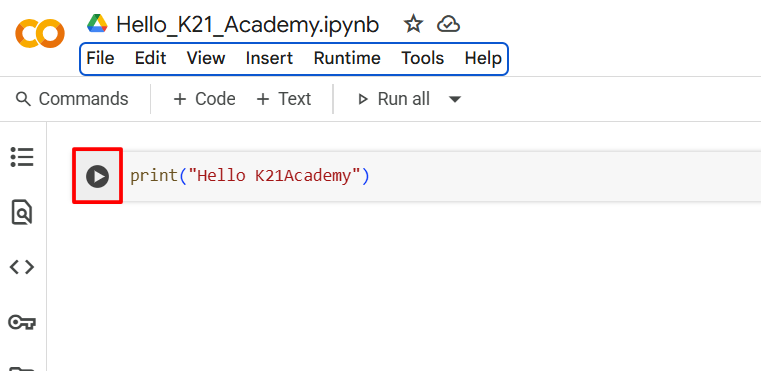
- To run the code, click the play button (▶️) on the left side of the cell or press Shift + Enter.
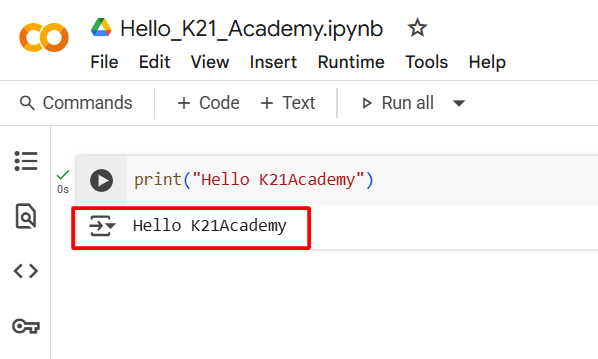
Output:
Additional Advanced Features in Google Colab
Sharing and Collaborating on Colab Notebooks
1. Share Your Notebook
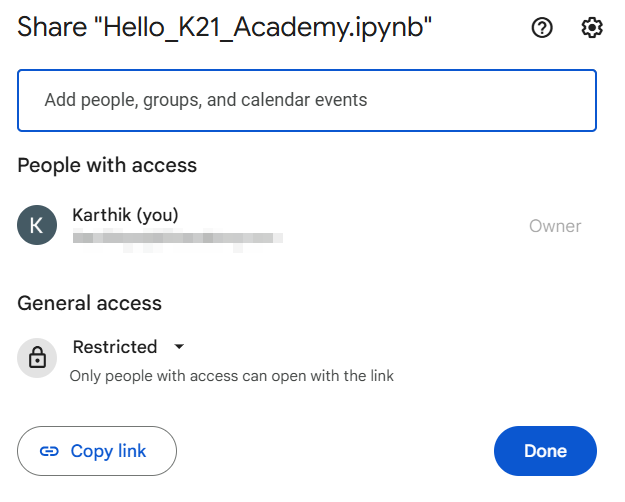
- Click on the Share button in the top-right corner to share your notebook. You can invite collaborators by email or generate a shareable link.

2. Real-Time Collaboration
- Google Colab supports real-time editing by multiple users, making it ideal for collaborative work on projects.
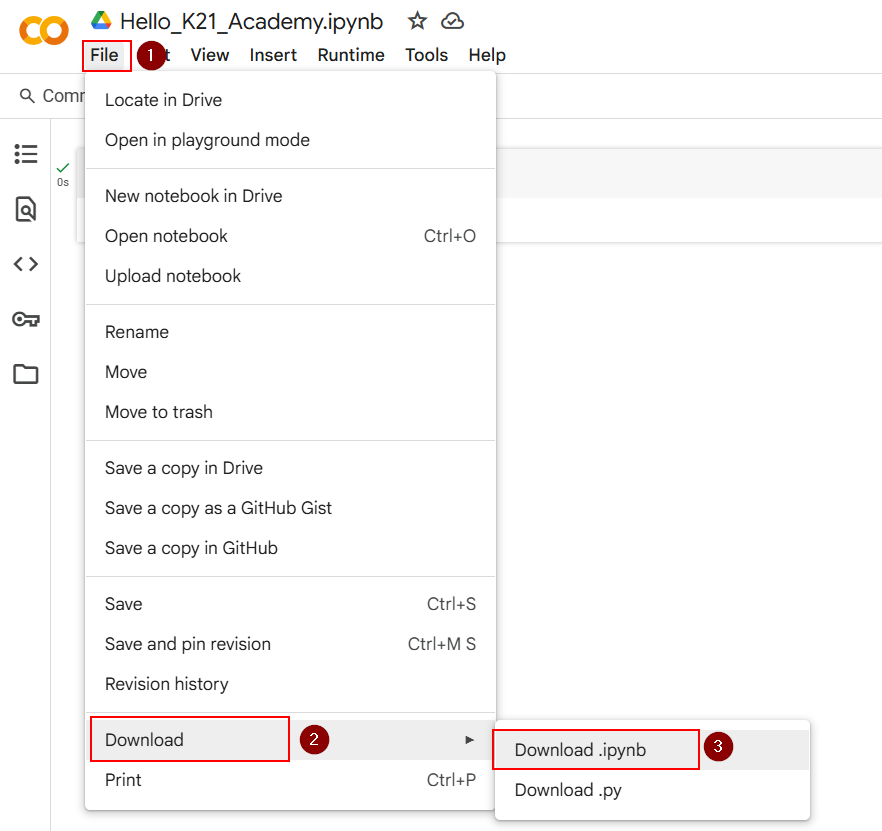
Exporting and Downloading Notebooks
To download your notebook, you can choose between different formats such as:
.ipynb (Jupyter notebook format)
.py (Python script)
Go to the
Filemenu and select Download .ipynb or Download .py.
References:
https://colab.research.google.com/
https://cloud.google.com/colab/docs/introduction
Troubleshooting Thread:https://www.skool.com/k21academy/issues-qa-lab-google-colab-complete-setup-usage-guide-post-here