Lab 4: Create API Keys for Tavily
Lab 4: Create API Keys for Tavily
Introduction:
In this guide, we’ll walk you through creating and using the Tavily API key, enabling you to integrate real-time Google Search results directly into your applications and workflows.
The Tavily API is a powerful tool that automates the process of retrieving the latest data from Google, helping you enhance the accuracy and relevance of your application’s responses.
What is the Tavily API?
The Tavily API provides a service that allows you to retrieve Google search results programmatically.
By using this API, you can perform real-time searches without manually querying Google, which makes it highly valuable for automating data collection and providing up-to-date information in your application or agent workflows.
Why Use the Tavily API?
The Tavily API is useful in a variety of applications:
Automated data retrieval : Get real-time data from Google searches without manual intervention.
Enhanced responses : Improve the accuracy and relevance of responses generated by your agents (like Planner and Writer).
Time-saving automation : Save time by automating the search process and allowing your agents to focus on more complex tasks like analyzing and interpreting the results.
Note: We will use this api key in our Labs.
To create your Tavily API key, please follow the steps below:
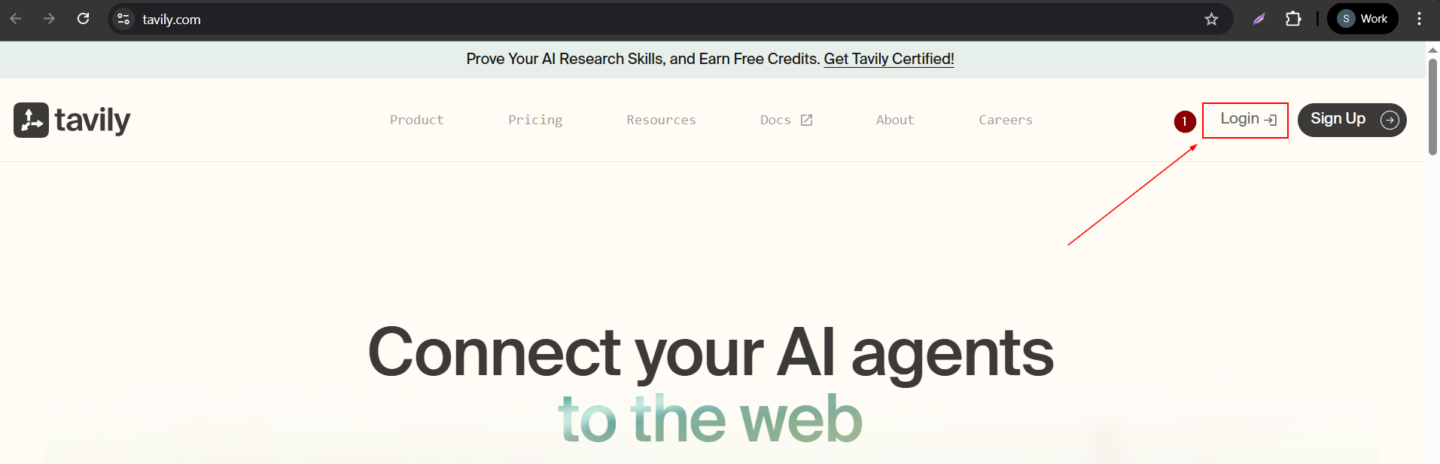
Open your web browser and go to the Tavily website.
Click the Login button in the top-right corner (as shown in the image).
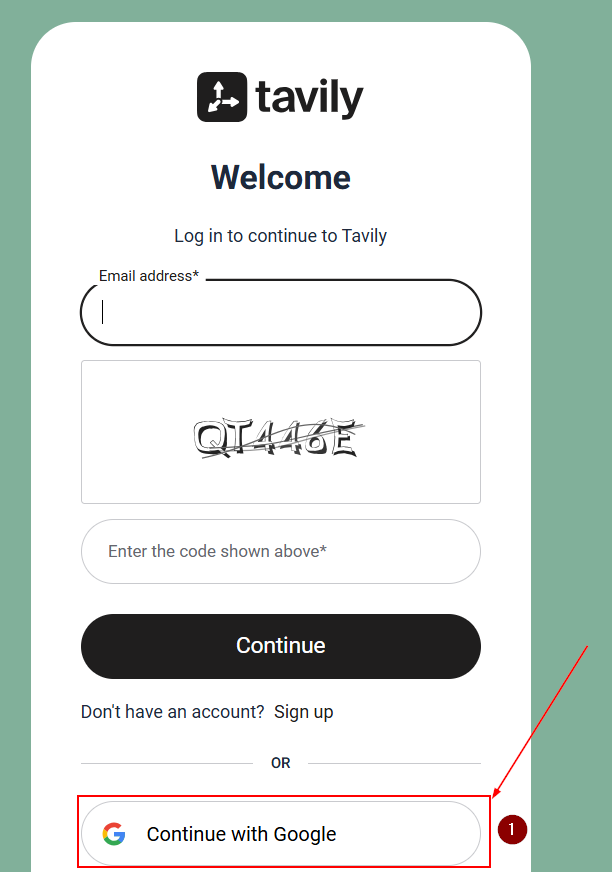
- Sign in using your registered email and password, or log in using your Google account by clicking Continue with Google.
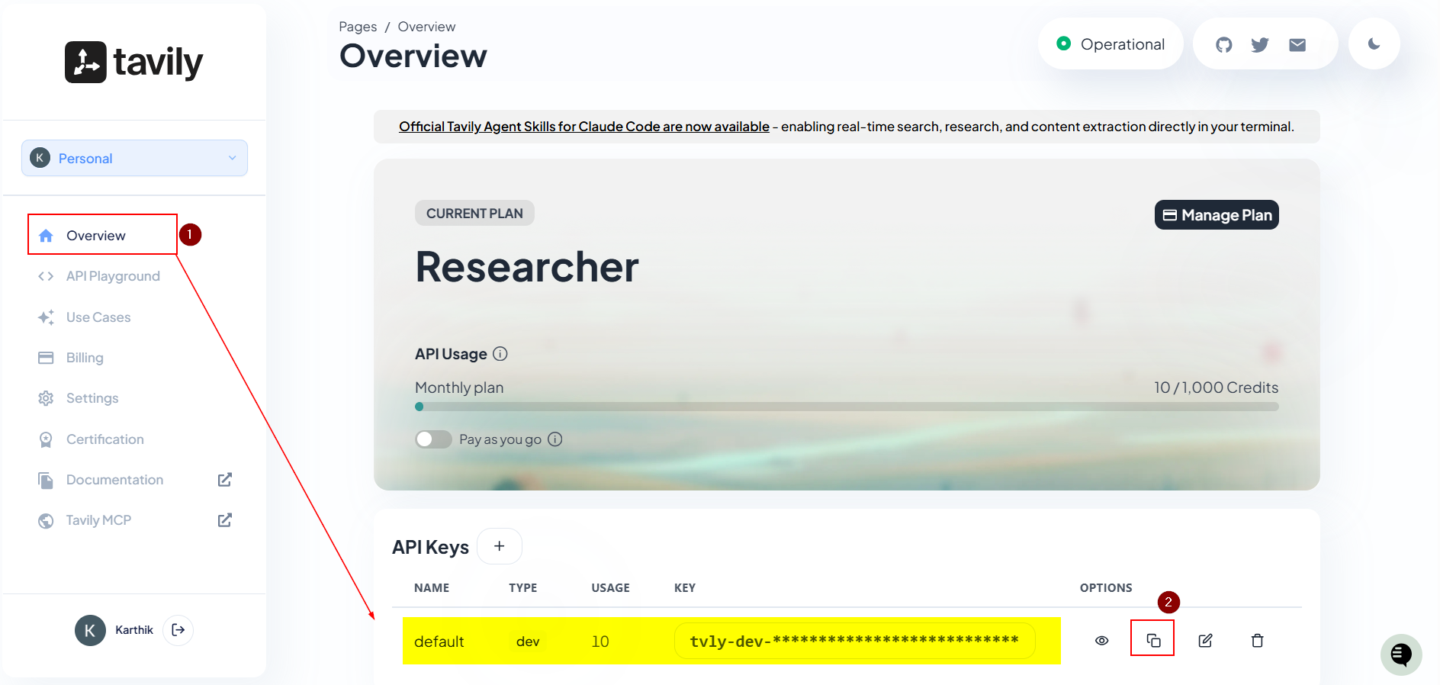
Once logged in, you will be directed to the Overview page.
On the left sidebar, select Overview under your profile section.
Under the API Keys section, you’ll find the default API key.
Copy the Default API key, click the copy icon next to the key in the list
Conclusion:
You have successfully created your Tavily API key! You can now use it to integrate Tavily’s real-time Google search capabilities into your applications. The default key is available immediately, but you can create additional keys by clicking the + icon in the API Keys section for different use cases (e.g., development, production).
What's Next:
We will use this key in our upcoming labs. To securely store your key in Google Colab Secrets, please follow this guide: Secure API Keys with Google Colab Secrets
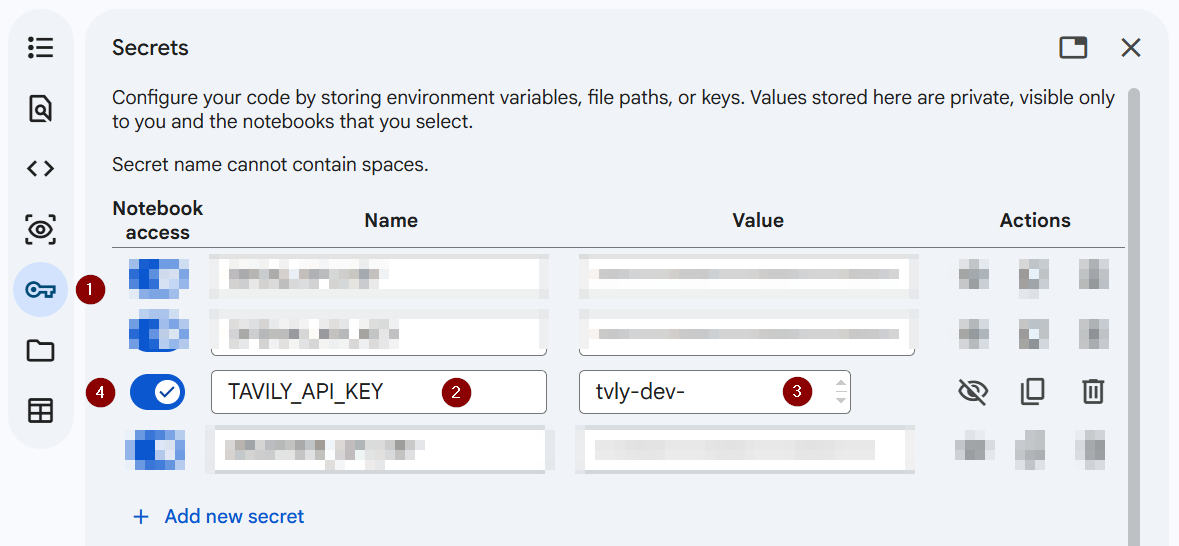
Note: Please use the environmental variable TAVILY_API_KEY under the name section, as we are using the same variable name in our labs.